
Contact
お困りごとは、こちらから
ご質問・不具合のご報告・ご要望は、下記のいずれかからお気軽にお問い合わせください。通常 2〜3 営業日以内にご返信します。日本語・英語に対応しています。 / We usually reply within 2–3 business days, in Japanese or English.
お問い合わせの際は、スマホの機種と OS(例: iPhone 15 / iOS 18)、PC の OS(例: macOS 15 / Windows 11)、アプリのバージョン、うまくいかない操作の手順を添えていただけるとスムーズです。
FAQ
よくある質問
PC 側には何が必要ですか?
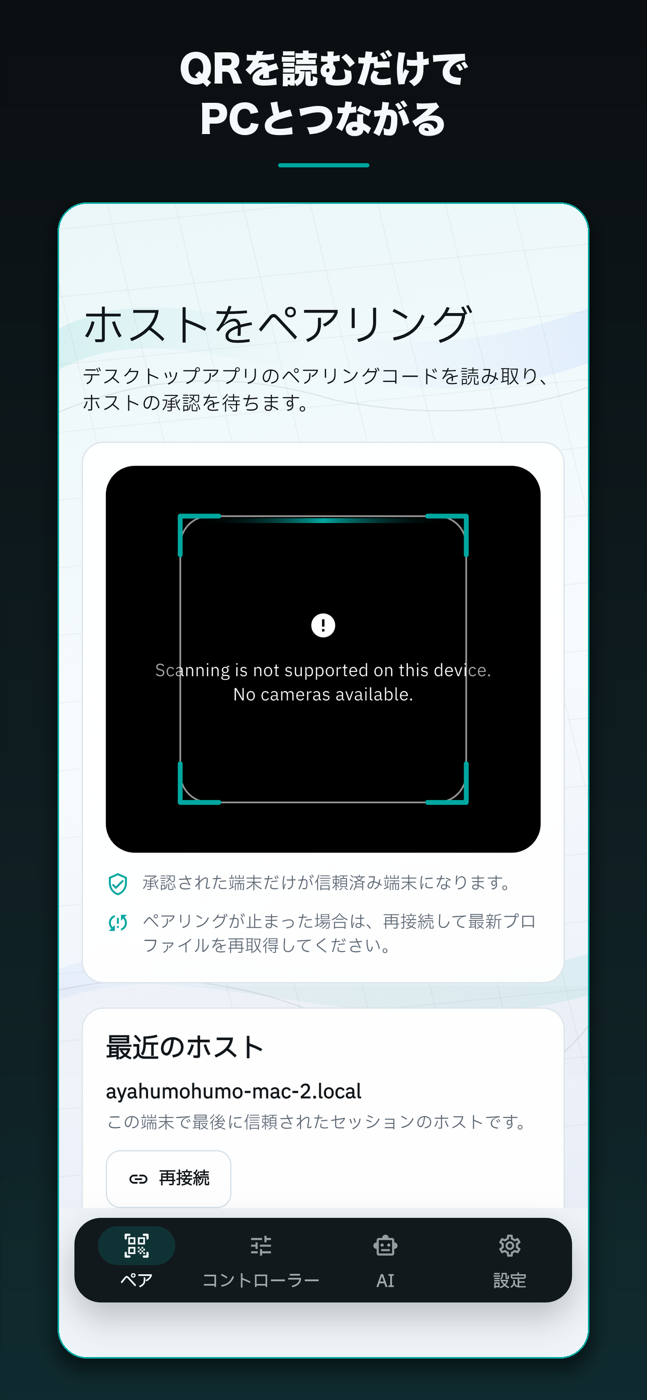
QR コードを読み取っても接続できません。
・PC とスマホが同じ Wi-Fi(同じネットワーク)に接続されていること(ゲスト Wi-Fi や VPN 接続中は通信できない場合があります)
・スマホで MAGTORO の「ローカルネットワーク」へのアクセスが許可されていること(iOS は「設定 → プライバシーとセキュリティ → ローカルネットワーク」)
・PC のファイアウォールで MAGTORO の通信が許可されていること
それでもつながらない場合は、PC とスマホの両方で MAGTORO を再起動してから、もう一度 QR コードを読み取ってください。
無料で使えますか?プレミアムでは何が変わりますか?
定期購入を解約したい。
機種変更したらプレミアムを引き継げますか?
操作内容やデータはどこかに送信されますか?
対応環境を教えてください。
English
MAGTORO Support
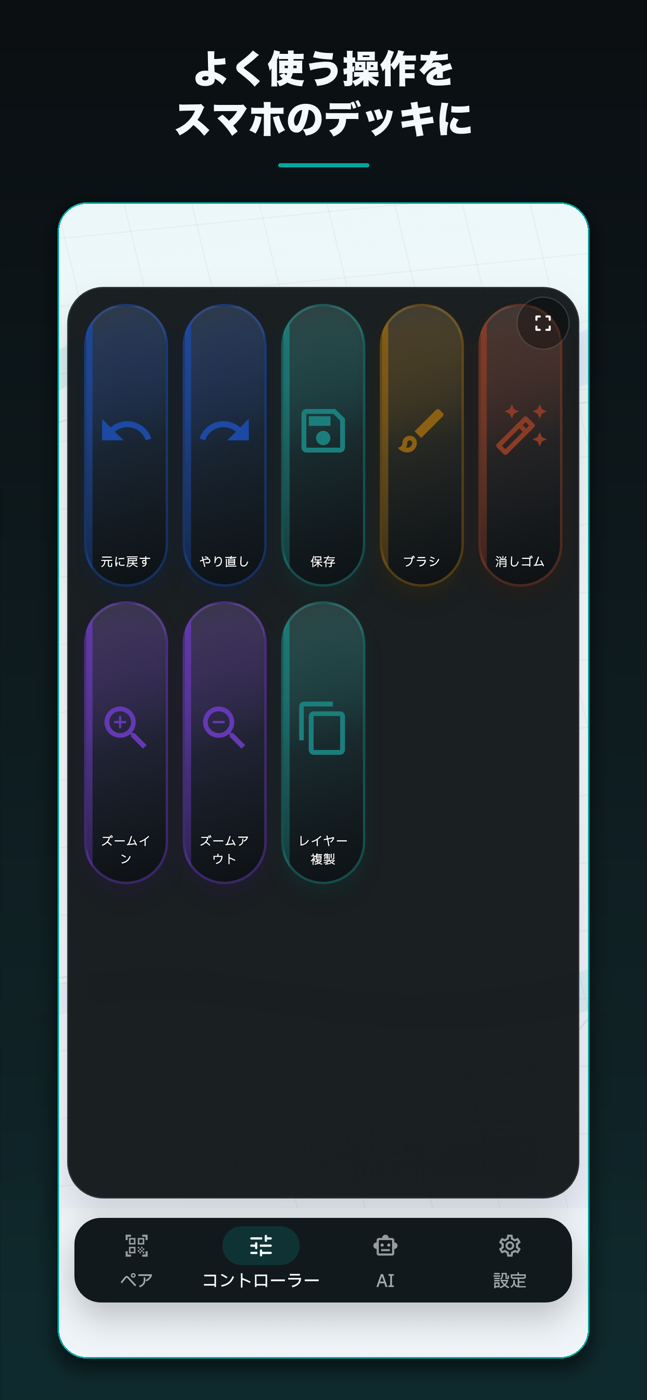
MAGTORO turns your iPhone, iPad or Android phone into a wireless shortcut pad (a “left-hand device”) for your computer. Tap a button on the phone and the assigned keyboard shortcut, macro or app launch runs on your Mac or Windows PC.
- Install MAGTORO on your computer (Mac: App Store / Windows: MAGTORO download page) and launch it. A pairing QR code appears on the screen.
- Connect the phone and the computer to the same Wi-Fi network.
- Open MAGTORO on the phone, tap Connect, allow Camera and Local Network access, and scan the QR code.
- Buttons appear on the phone. Tap a button to run its action on the computer.
Contact us
For questions, bug reports or feature requests, contact us by email or on X. We usually reply within 2–3 business days, in English or Japanese.
Please include your phone model and OS (e.g. iPhone 15 / iOS 18), your computer's OS (e.g. macOS 15 / Windows 11), the app version, and the steps that do not work.
FAQ
What do I need on the computer?
I scanned the QR code but cannot connect.
Is it free? What does Premium add?
How do I cancel a subscription?
How do I restore Premium on a new device?
Is my data sent anywhere?
Developer: KENPOS (心のデブを信じろ) / Contact: kenpos13@gmail.com
简体中文
MAGTORO 支持
MAGTORO 可以把 iPhone、iPad 或 Android 手机变成电脑的无线快捷键面板(“左手设备”)。在手机上点击按钮,即可在 Mac 或 Windows 电脑上执行所设置的快捷键、宏或启动应用。
- 在电脑上安装并启动 MAGTORO(Mac:App Store / Windows:MAGTORO 下载页面),屏幕上会显示配对用的二维码。
- 将手机和电脑连接到同一个 Wi-Fi 网络。
- 在手机上打开 MAGTORO,点击“连接”,允许访问相机和本地网络,然后扫描二维码。
- 手机上会显示按钮。点击按钮即可在电脑上执行对应的操作。
联系我们
如有疑问、问题反馈或功能建议,请通过电子邮件或 X 与我们联系。我们通常会在 2–3 个工作日内回复,支持英语和日语(也可以用中文来信)。
联系时请附上手机型号和系统版本(例如 iPhone 15 / iOS 18)、电脑系统(例如 macOS 15 / Windows 11)、应用版本以及出现问题的操作步骤。
常见问题
电脑端需要什么?
扫描二维码后无法连接。
可以免费使用吗?高级版有什么区别?
如何取消订阅?
换了新设备,如何恢复高级版?
我的数据会被发送到其他地方吗?
开发者:KENPOS(心のデブを信じろ)/联系方式:kenpos13@gmail.com
Deutsch
MAGTORO Support
MAGTORO macht Ihr iPhone, iPad oder Android-Smartphone zu einem kabellosen Shortcut-Pad („Linke-Hand-Gerät“) für Ihren Computer. Tippen Sie auf eine Taste, und das zugewiesene Tastenkürzel, Makro oder der App-Start wird auf Ihrem Mac oder Windows-PC ausgeführt.
- Installieren und starten Sie MAGTORO auf dem Computer (Mac: App Store / Windows: MAGTORO-Downloadseite). Auf dem Bildschirm erscheint ein QR-Code zum Koppeln.
- Verbinden Sie Smartphone und Computer mit demselben WLAN.
- Öffnen Sie MAGTORO auf dem Smartphone, tippen Sie auf Verbinden, erlauben Sie den Zugriff auf Kamera und lokales Netzwerk und scannen Sie den QR-Code.
- Auf dem Smartphone erscheinen Tasten. Tippen Sie auf eine Taste, um die Aktion auf dem Computer auszuführen.
Kontakt
Bei Fragen, Fehlerberichten oder Wünschen erreichen Sie uns per E-Mail oder über X. Wir antworten in der Regel innerhalb von 2–3 Werktagen auf Englisch oder Japanisch (Anfragen auf Deutsch sind willkommen).
Bitte geben Sie Smartphone-Modell und Betriebssystem (z. B. iPhone 15 / iOS 18), das Betriebssystem des Computers (z. B. macOS 15 / Windows 11), die App-Version und die Schritte an, bei denen das Problem auftritt.
Häufige Fragen
Was brauche ich auf dem Computer?
Ich habe den QR-Code gescannt, aber es wird keine Verbindung hergestellt.
Ist die App kostenlos? Was bietet Premium?
Wie kündige ich ein Abo?
Wie stelle ich Premium auf einem neuen Gerät wieder her?
Werden meine Daten irgendwohin gesendet?
Entwickler: KENPOS (心のデブを信じろ) / Kontakt: kenpos13@gmail.com
Legal